Glambot Instructions
Make sure your set up looks professional (Click Link)
There are 5 main pieces of equipment for the Glambot Booth; Glambot arm, GoPro, Glambot iPhone, Glambot iPad, and guest iPads (2).
NEVER try to forcefully move the glambot arm.
1. Set up Glambot then go thru Glambot calibration set up, When Glambot is powered on it gives off it’s own WiFi signal called, “Glambot”.
CALIBRATION: As soon as you power on Glambot watch the small hand/ wrist section on the end that holds the GoPro. As soon as you see it move, hold the main arm up slightly so you are holding it apx 1/4 inch higher than it rests. As soon as hand/ wrist stops, the next section of arm will engage the arm you are holding and the next section of the arm will start moving. When next section of arm starts moving you can let go now and wait for calibration to finish. It will go up/down/left and then stop. Glambot is ready.
CAUTION: If the arm never starts moving then turn it off, wait 5 seconds, power on again. Calibration will always fail if you’re not holding the arm when hand/ wrist stops.
2a. After Glambot hardware is ready, set up the ipad you are using to run the glambot directly behind the Glambot and mount the iphone to the iPad using the black clamp attached to the phone holder. Make sure the iPhone is mounted in the holder directly on top of a wireless, magnetic charger so the iPhone and attached GoPro stay charged.
2b. Connect your iPhone WiFi to your mobile hotspot or the venues wifi. (not the glambot wifi) Connect USB C cable from iPhone to USB C port located underside/ middle of glambot arm, then connect 2nd usb c cable from GoPro camera to USB C port located near the end of glambot arm. Note: They don’t plug into each other directly. There are USB ports built into the glambot.
3a. Power on the GoPro by pressing in power button for 3 seconds. The screen shd say “USB CONNECTED”. If not, disconnect usb from iPhone and reconnect it.
3b. On the Glambot iPhone, launch the GoPro Quik App so the iPhone is connected to the GoPro.
4. In iPhone settings go to Bluetooth and connect to “Glambot” bluetooth.
REMEMBER: You’re connecting iPhones internal bluetooth to the Glambot bluetooth signal, not the GoPro signal.
5a. Launch Snappic App on iPhone.
If it doesn’t log you in automatically you need to log in:
For White Label event: USER: mclain@pixsterphotobooth.com PASSWORD: Eye4details!
For Cocktail Hour Entertainment event: USER: sales@cocktailhourentertainment.com PASSWORD: Stargate123!
5b. At the very top of snappic make sure “Live” tab is selected.
Click on your event, Example, “Glambot 10-26-24”.
Scroll down to “Select Accessories”, and select “Volume” so it is high lighted, then select “Done” in top right corner.
Click “Configure Camera”, then at bottom click “Search For GoPro Camera”, select “Hero12 Black Wired”. It must say wired. Note: Do not select the wireless GoPro if it appears here.
5c. Select, “Start Photo Booth”/ Select your phone (if it asks you to name it, give it a name), If a pop up asks to enable GoPro support, select, NO.
TROUBLE SHOOTING: If it keeps asking you to name your phone and doesn’t accept the name you prob have no wifi signal. If problem persists just delete snappic app and reinstall it.
5d. Press START BOOTH, At the bottom of screen press VIDEO, at the bottom of the screen choose one of the video templates, then press the arrow > button in the top right corner. The screen will now say ’TAP TO START”. You are now finished with the iPhone. Note: if you need to EXIT the current session at any time press the button in the top left corner until it says EXIT. Then enter the password 1234. This password prevent guests from exiting the session.
GUEST IPADS: Connect the guest iPads to your mobile hotspot wifi or venue wifi (The same as the glambot iPhone). On the iPads repeat step 5a above and launch Snappic app and select your event, but instead of selecting START BOOTH you will select START GALLERY. Repeat this for both guest kiosks. Guests will use these kiosks to access and text/ email their videos.
TROUBLE SHOOTING TIP: If connection is weak and kiosk is not downloading the latest videos you can let guest use the glambot iPhone and click “Gallery” to scroll thru the guest videos and let clients text their videos directly from the iPhone.
GLAMBOT ATTENDANT IPAD: Turn on your employee iPad which will be set up directly behind the Glambot. Go to iPad settings/ Wi-Fi/ and select Glambot-0039 wifi channel. PASSWORD: Glambot1
Open safari web browser, enter http://glambot-0039.local:8080/webapp
You are now in the Glambot Webapp which is the screen used to run the Glambot arm. For a simple App tutorial CLICK HERE
TROUBLE SHOOTING TIP: If arm is not responsive try refreshing the web browser and make sure this ipad is connected to Glambot wifi.
6. During event for each guest, follow instructions 5d. above until it says, ’TAP TO START”. (Don’t tap to start)
In the glambot App choose one of the “Paths”, then press green “Start” button. The arm will move to the start position and wait 3, 5, or 10s based on your settings. When this delay ends the Glambot will start its path and the GoPro will automatically start recording and stop recording when the arm stops moving. It will edit the video and show it on your phone for you to view AND it will appear on the customer Kiosks, where guests select to text or email it.
7. After each session ends you can start the next session immediately from where the arm stopped, or you can press the “home” button in the employee IPAD app to move the arm out of the the way for the next guests to enter the filming area. ALWAYS MAKE SURE THE GLAMBOT AREA IS CLEAR OF GUESTS BEFORE YOU PRESS THE “HOME” OR “START” BUTTON. Press the red “STOP” button on the Employee Ipad to stop the glambot without shutting power to the glambot. There is an emergency STOP button on the floor, but this button kills power to the unit so you will need 5-10 minutes to reset the arm using the included 24V power supply to unlock the arm and then recalibrate it.
8. When the event ends, press the “OFF / Extend” button which moves the arm into a movable position so you can disassemble it. If you don’t do this you wont be able to bend the arm to fit it in the roadcase. Speak to Eric before you power down the Glambot if you do not know how.
REMINDER: Glambot iPhone will be mounted on top of a wireless charger. This mount will be attached to the iPad. NOTE: This keeps the iPhone charged and the iPhone (Via USB-c cable) keeps the GoPro charged.
TROUBLE SHOOTING
STUCK ARM: Glambot arm is stuck and won’t move: 1. Make sure no one is near the Glambot paths, 2. One employee gets ready to catch the arm from dropping, second employee connects 24V power supply directly to 2 pin arm wire using the color-coded cable. As soon as you power this on the glam but arm will drop. 3. Move arm to the neutral calibration location. (Big Arm parallel to floor, small arm 90º angle facing floor.) 2. Unplug the 24V power supply to re-lock arm. Power down the Glambot, wait 5 seconds, power on Glambot and follow calibration procedure watching the camera arm and as soon as you see it move, hold the arm up so you are holding it apx 1/4 inch higher than it rests. As soon as the next section of arm starts moving you can let go and wait for calibration to finish.
CONNECTING A GoPro USING SNAPPIC
EVENT WONT LOAD IN SNAPPIC: the wifi is not connecting. Check your wifi, if it is good, Delete the App and reinstall it if all else fails. Note: when you install the app; 1) open it, 2) quit, 3) open a 2nd time and sign in with email and password. If you don’t quit the first time, it won’t accept the username and password.
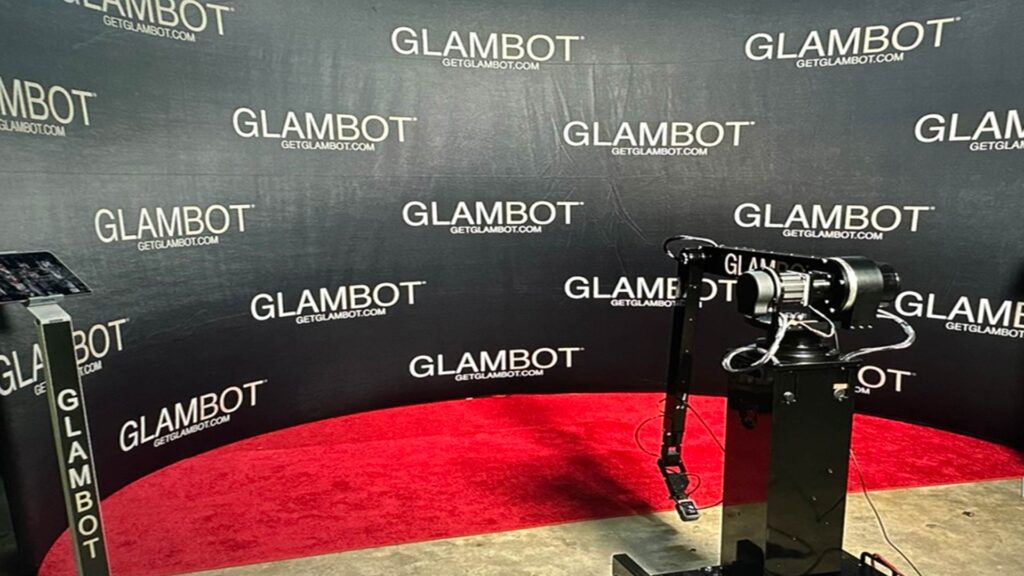
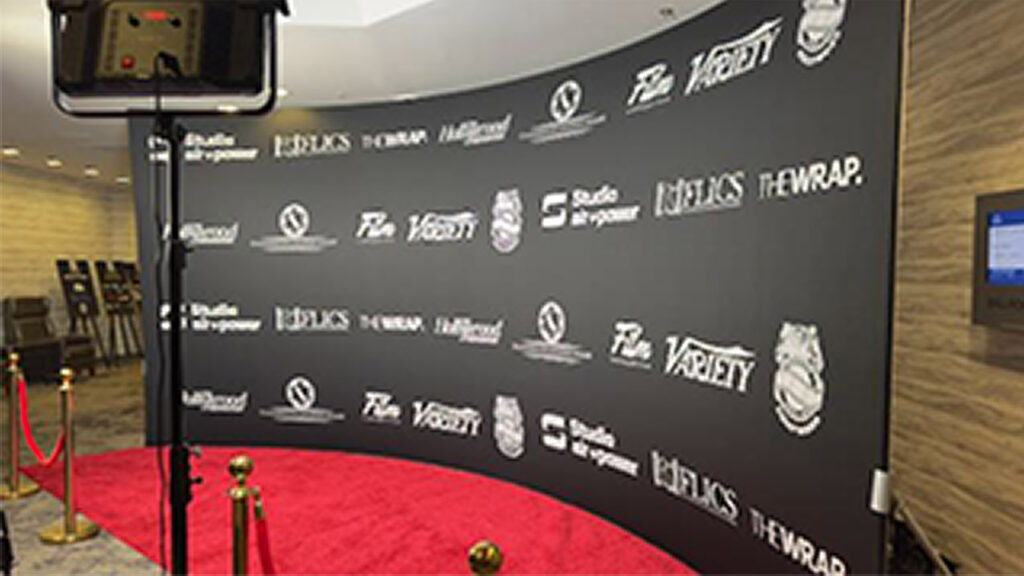
The floor of the Glambot backdrop should be filled with 2 red carpets fitting inside the curve (left photo) or the red carpet can extend in front of the backdrop. (right photo)